
Step 01
Choose Model or Texture search
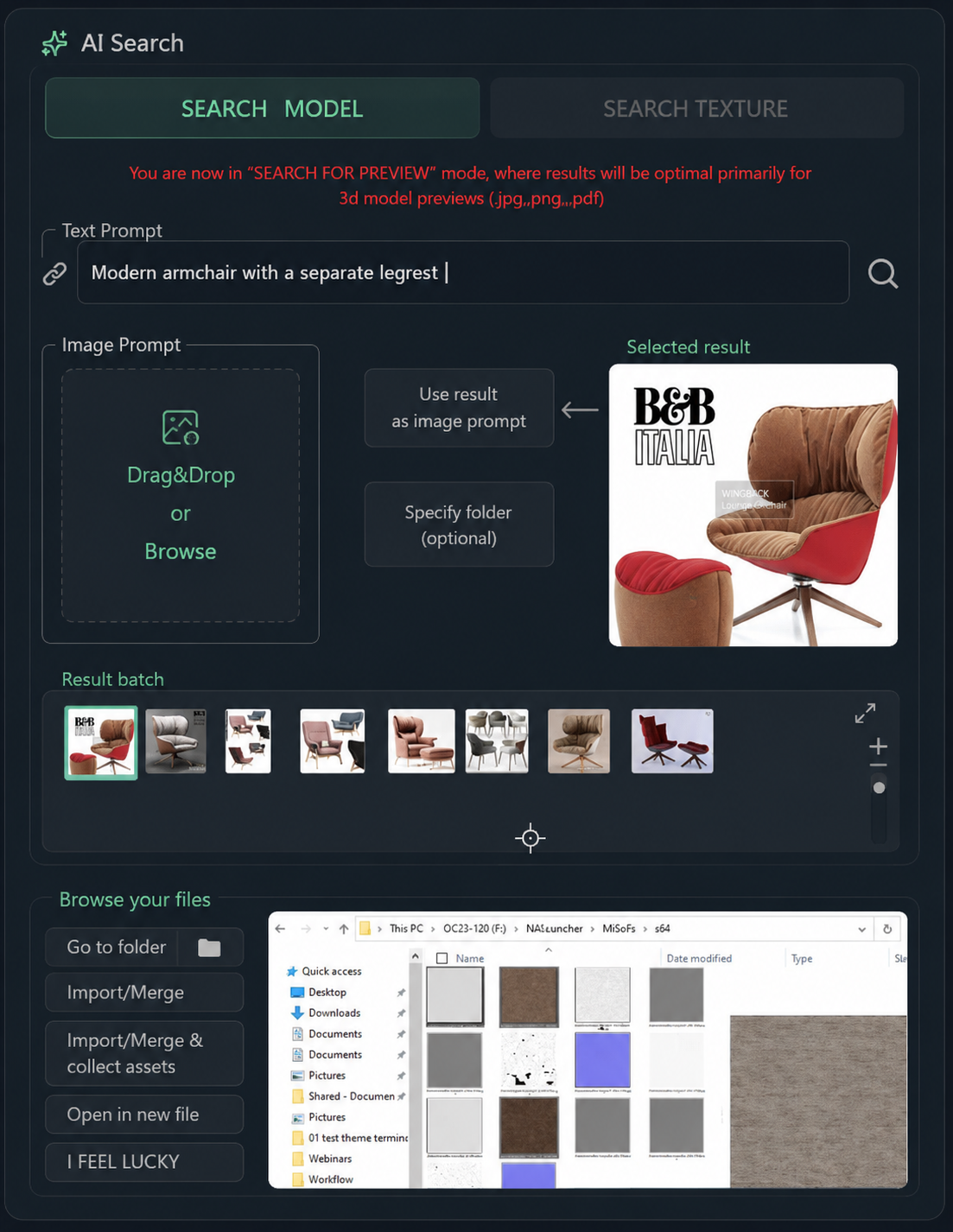
Search Model looks through the preview images that ship with your model packs. Search Texture looks through your maps. The banner shows which set you are querying.
Walkthrough · 3ds Max on Windows
A direct search-to-scene workflow inside 3ds Max.
Search Model looks through the preview images that ship with your model packs. Search Texture looks through your maps. The banner shows which set you are querying.
Add the local folders, external drives or mapped network directories that hold your models and textures. Indexing time depends on the size of the selected library, storage speed and workstation hardware.
Write it the way you'd describe it to a colleague — “modern armchair with a separate legrest” — or drag in a reference image to find the closest thing in the selected folders.
Where a tolerance or accuracy control is available, use it to widen or tighten how closely a result has to match before it is returned.
Results come back as a batch of previews. Zoom in and step through them before opening anything.
Compare shapes and materials in the preview and pick the asset that actually matches the brief.
Merge the asset into the open scene, open the source file on its own, jump to its original folder in Explorer, or collect its associated assets where that is available on your plan.